

Install and use the plugin
Tag screens, popups, notifications, window buttons, pages, and static layers with a click, and let the plugin check your work.
The plugin names layers so Lazy UIs knows what they do. You pick a layer, pick what it should do, and it renames the layer; nothing else changes in your file.
Download the pluginA small folder with a manifest; no account or network access needed.Install it once
- 1Unzip it
Extract the ZIP anywhere on your computer, for example your Documents folder.
- 2Import it into Figma
In the Figma desktop app, open any design file and choose Plugins → Development → Import plugin from manifest…, then pick
manifest.jsonfrom the folder. - 3Run it
Choose Plugins → Development → Lazy UIs. The panel opens on the right and stays open while you work.
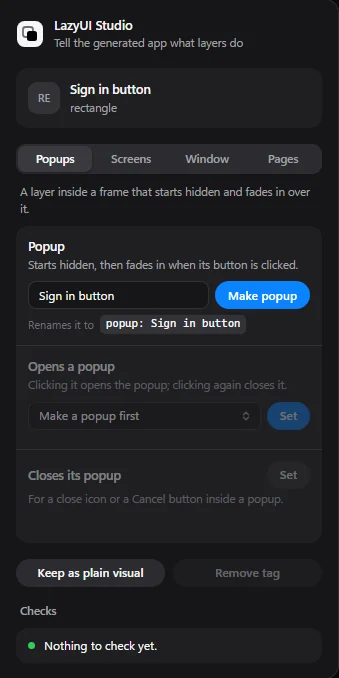
Use it
- 1Select a layer
Click a button, frame, or icon in the canvas. The panel shows it at the top.
- 2Pick a tab
Screens, Controls, Popups, Notify, or Window. Selecting a layer that's already tagged opens its tab.
- 3Apply
Each action shows the name the layer will get (Renames it to
go: Main) before you click. - 4Read the checks
The Checks list turns green when everything is connected. Click a warning to jump to that layer.
Which tab do I need?
notify( "Saved" ). See Notifications.What the checks catch
- A popup that nothing opens, or a popup or notification that other layers cover.
- A notification drawn as its own top-level frame instead of inside the screen where it appears.
- A button that opens a popup or notification, or goes to a screen, that doesn't exist on this page.
- A screen link to a frame more than twice as large or small as the screen it's on.
- A window button that isn't along the top edge on the right.
- A Page tag on a frame that sounds like a screen, such as Login.
Want to try it first? The Figma plugin page in the app runs the real plugin on a sample file.